It is currently Tue Jun 09, 2026 1:13 am


All times are UTC - 5 hours [ DST ]


Post new topic Reply to topic  [ 31 posts ]  Go to page 1, 2  Next
Author Message
 Post subject: Re: Tutorial Ideas
PostPosted: Sat Dec 18, 2010 12:18 am  (#11) 
Offline
GimpChat Member

Joined: Apr 11, 2010
Posts: 545
Location: In the mini-chat, saying silly things
He did at least two and so did I. Several good ones from jxtutorials too (Hers are the bests actually. Very talented designer and she explains things well too.) And if you look for them, there are many from lesser known youtubers, some of them showing you how to work with templates and filling every box with something else, stuff like that.

_________________
Image


Top
 Post subject: Re: Tutorial Ideas
PostPosted: Sat Dec 18, 2010 2:08 am  (#12) 
Offline
Global Moderator
User avatar

Joined: May 16, 2010
Posts: 16021
Great, thanks Jolie.Guess i need to search more.
Mike another idea is to take any PS tutorial and make it in Gimp.
A lot of times this can be pretty advanced.

_________________
Image


Top
 Post subject: Re: Tutorial Ideas
PostPosted: Sat Dec 18, 2010 2:52 am  (#13) 
Offline
Former Member
User avatar

Joined: Nov 17, 2010
Posts: 618
Location: Rockford, IL
Rod wrote:
Great, thanks Jolie.Guess i need to search more.
Mike another idea is to take any PS tutorial and make it in Gimp.
A lot of times this can be pretty advanced.

I didn't think of that, I'll give that a try as well, some maybe already made though.


Top
 Post subject: Re: Tutorial Ideas
PostPosted: Sat Dec 18, 2010 10:18 am  (#14) 
Offline
Retired Staff
User avatar

Joined: May 22, 2008
Posts: 6946
Location: Somewhere in GIMP
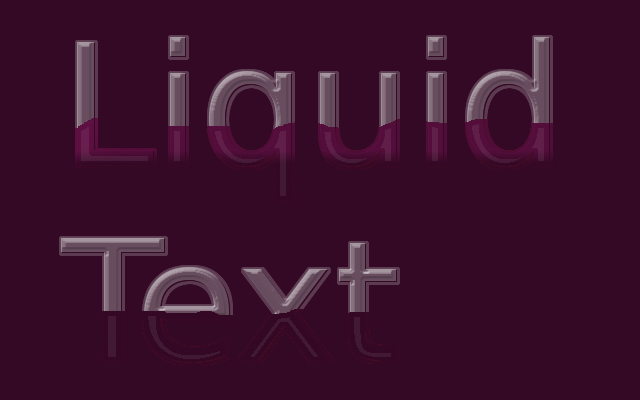
Here's a really cool PhotoShop tutorial for liquid filled glass text. Would be nice to have a gimp tut for it.

http://psd.tutsplus.com/tutorials/text-effects-tutorials/liquid-filled-glass-text-effect/

_________________
Image
World War IV will be fought with sticks and stones. - Albert Einstein


Top
 Post subject: Re: Tutorial Ideas
PostPosted: Sat Dec 18, 2010 12:27 pm  (#15) 
Offline
Former Member
User avatar

Joined: Nov 17, 2010
Posts: 618
Location: Rockford, IL
I love these ideas, that text one I believe I can achieve in Gimp. Thanks for the idea!


Top
 Post subject: Re: Tutorial Ideas
PostPosted: Sun Dec 19, 2010 6:52 am  (#16) 
Offline
Global Moderator
User avatar

Joined: May 16, 2010
Posts: 16021
Wow...take my plastic text tutorial...duplicate the text and cut it with the paths tool...add a gradient and you would have it.Glossy, see thru, and everything. =)

Plastic Text in GIMP

Image

_________________
Image


Top
 Post subject: Re: Tutorial Ideas
PostPosted: Sun Dec 19, 2010 8:36 am  (#17) 
Offline
Retired Staff
User avatar

Joined: May 22, 2008
Posts: 6946
Location: Somewhere in GIMP
Cool idea Rod! Should work.

_________________
Image
World War IV will be fought with sticks and stones. - Albert Einstein


Top
 Post subject: Re: Tutorial Ideas
PostPosted: Sun Dec 19, 2010 12:16 pm  (#18) 
Offline
GimpChat Member
User avatar

Joined: Oct 06, 2010
Posts: 4050
Image

Just follow the tutorial you posted:
Quote:
Here's a really cool PhotoShop tutorial for liquid filled glass text. Would be nice to have a gimp tut for it.

http://psd.tutsplus.com/tutorials/text- ... xt-effect/


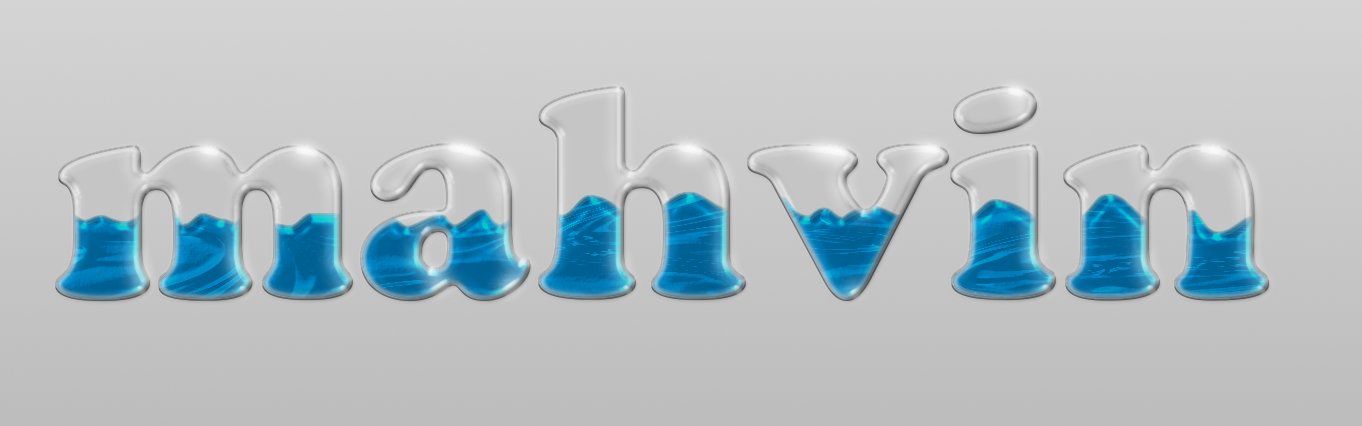
The only major difference was in the contours for each layer style setting done in PS. The Layer Effects script/plug-in does not have the identical set of contours. So when doing this tutorial, instead of log, try half round.

Forgot to add, that rasterize in GIMP works differently, since you can't right click a layer and select "rasterize". To do this in GIMP, create a transparent layer beneath the layer needing rasterized, then right click that new transparent layer and select "merge down".

To get the second level light glare shown in the PS tutorial (Layer Effects didn't have triple ring, so I used double ring), I shrank the text path a few pixels and added a white stroke (about 2px) then blurred it 8px. That could probably be improved a little, I just intended to get through the tutorial to see how complicated it would be.

_________________
"In order to attain the impossible, one must attempt the absurd."
~ Miguel de Cervantes


Top
 Post subject: Re: Tutorial Ideas
PostPosted: Sun Dec 19, 2010 12:38 pm  (#19) 
Offline
Retired Staff
User avatar

Joined: May 22, 2008
Posts: 6946
Location: Somewhere in GIMP
Totally wet mahvin! :mrgreen: Nice. :hehe

_________________
Image
World War IV will be fought with sticks and stones. - Albert Einstein


Top
 Post subject: Re: Tutorial Ideas
PostPosted: Sun Dec 19, 2010 12:51 pm  (#20) 
Offline
GimpChat Member
User avatar

Joined: Oct 06, 2010
Posts: 4050
O: I actually enjoyed the tute. Each picture was settings for the highlighted tab shown. I wanted to break down the Layer Effects menu for each style on the menu, and make the connection between PS and GIMP, because a few settings were puzzling. Some examples would be: Bevel and Emboss, Inner bevel depth at 100%. In GIMP Layer Effects, the slider isn't in percentage, you need to move the slider to 65.

PS has drop shadow "distance", would that be "blur" in GIMP? Some settings don't match up, but most do. The easiest way to test these settings, is to make a colored square (any color other than white and black, because these are usually shadow/highlight colors). Using a square over a circle, because you'll get to see what it does to corners. Using a circle won't show you those results.

_________________
"In order to attain the impossible, one must attempt the absurd."
~ Miguel de Cervantes


Top
 Post subject: Re: Tutorial Ideas
PostPosted: Sun Dec 19, 2010 1:09 pm  (#21) 
Offline
Retired Staff
User avatar

Joined: May 22, 2008
Posts: 6946
Location: Somewhere in GIMP
@ mahvin,

I believe the X & Y settings in GIMP set the distance.

The drop shadow on the top one the X & Y were set to 5 and the blur radius 3. The bottom one X & Y were set to 12, blur radius still 3. In the Layer Effects Drop Shadow the offset distance seems to be the one that does that.

Filters > Light & Shadow > Drop Shadow
Image

I kind of ran through the tutorial trying it on some text and got boggled along the way. Thanks for your tips there.

Perhaps Mike can make a totally GIMP tutorial with it using your input along with his ideas.

_________________
Image
World War IV will be fought with sticks and stones. - Albert Einstein


Top
 Post subject: Re: Tutorial Ideas
PostPosted: Sun Dec 19, 2010 4:19 pm  (#22) 
Offline
GimpChat Member
User avatar

Joined: Nov 22, 2010
Posts: 42
how bout something like a border with christmas lights?, that would be awesome...

_________________
Image


Top
 Post subject: Re: Tutorial Ideas
PostPosted: Sun Dec 19, 2010 4:28 pm  (#23) 
Offline
GimpChat Member
User avatar

Joined: Oct 19, 2010
Posts: 376
Location: North Central Ohio, USA
Clipping masks and masks in general always give me problems.I don't use them enough to be proficient and often go the "long way around" when masking would speed things up, I'm sure. So even if Mike thinks it is too basic, it is a tutorial I'd like to see.

_________________
Life Truth: #12
My cat is a worst typist than I am.


Top
 Post subject: Re: Tutorial Ideas
PostPosted: Mon Dec 20, 2010 11:14 pm  (#24) 
Offline
GimpChat Member
User avatar

Joined: Nov 22, 2010
Posts: 42
i still like the idea of a border of christmas lights if you have any idea how to do that?

_________________
Image


Top
 Post subject: Re: Tutorial Ideas
PostPosted: Tue Dec 21, 2010 1:05 am  (#25) 
Offline
GimpChat Member
User avatar

Joined: Oct 06, 2010
Posts: 4050
It's not perfect, but not a tutorial, either. But an animated brush. I've attached the animated brush below for your downloading pleasure.

What's it look like? (not actual size, since I scaled the image down 50%, but brush was at 25%)
Image

Actual size:
Image

How was it made?

I made a curvy path, and then chose to stroke it using the paint tool option, being careful to pre-set my brush size and spacing before running it.

Enjoy!


Attachments:
File comment: Christmas lights animated brush.
xmas_lights.gih [1.24 MiB]
Downloaded 122 times

_________________
"In order to attain the impossible, one must attempt the absurd."
~ Miguel de Cervantes
Top
 Post subject: Re: Tutorial Ideas
PostPosted: Tue Dec 21, 2010 1:19 am  (#26) 
Offline
Global Moderator
User avatar

Joined: May 16, 2010
Posts: 16021
Animated border lights or just non animated? I had my own go at it with bigger bulbs.
Nice brush btw Mahvin, i downloaded it.
Image


Attachments:
File comment: xcf for Team_Christmas
GimpTeamChristmas.xcf [1.99 MiB]
Downloaded 121 times

_________________
Image
Top
 Post subject: Re: Tutorial Ideas
PostPosted: Tue Dec 21, 2010 2:07 am  (#27) 
Offline
Retired Staff
User avatar

Joined: May 22, 2008
Posts: 6946
Location: Somewhere in GIMP
Thanks for the cool brush, mahv!

Image

_________________
Image
World War IV will be fought with sticks and stones. - Albert Einstein


Top
 Post subject: Re: Tutorial Ideas
PostPosted: Tue Dec 21, 2010 2:38 am  (#28) 
Offline
Global Moderator
User avatar

Joined: May 16, 2010
Posts: 16021
Image

_________________
Image


Top
 Post subject: Re: Tutorial Ideas
PostPosted: Tue Dec 21, 2010 2:44 am  (#29) 
Offline
Global Moderator
User avatar

Joined: May 16, 2010
Posts: 16021
Woops i forgot to plug it in! =)

Image

_________________
Image


Top
 Post subject: Re: Tutorial Ideas
PostPosted: Tue Dec 21, 2010 2:45 am  (#30) 
Offline
Global Moderator
User avatar

Joined: May 16, 2010
Posts: 16021
Probably could have gotten those gradient flare colors a little closer...lol

_________________
Image


Top
Post new topic Reply to topic  [ 31 posts ]  Go to page 1, 2  Next

All times are UTC - 5 hours [ DST ]


* Login  


Powered by phpBB3 © phpBB Group