It is currently Thu Jun 11, 2026 7:34 am


All times are UTC - 5 hours [ DST ]


Post new topic Reply to topic  [ 22 posts ]  Go to page 1, 2  Next
Author Message
 Post subject: Make your images POP with 3 easy steps!
PostPosted: Fri Jan 20, 2012 10:27 pm  (#1) 
Offline
GimpChat Member
User avatar

Joined: Oct 11, 2011
Posts: 55
Ever take a pic and think, "Man, why aren't the colors there?"

Well here is a quick little thing you can do to really make your image come alive.

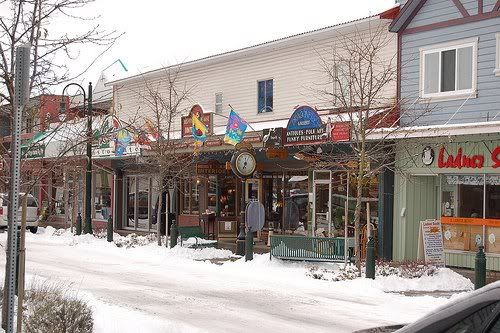
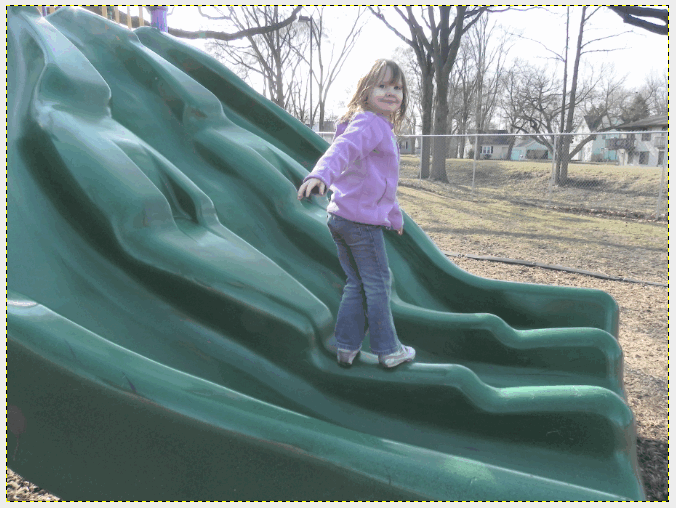
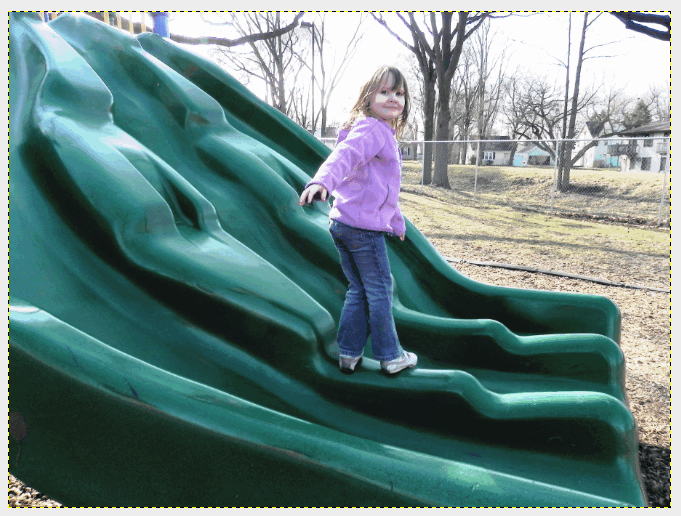
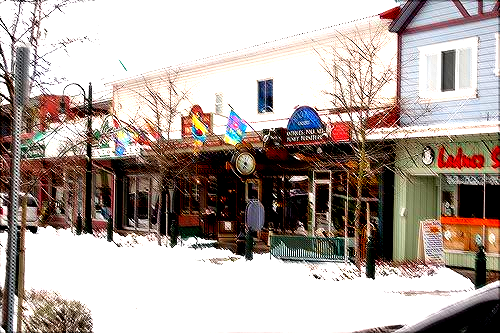
I'll be using the following photo so you can see the difference.

Image

Once you have the photo opened up, right click on it in the layers box and click "Duplicate layer."

Make sure you are working on the duplicate and select filters>blur>gaussian blur

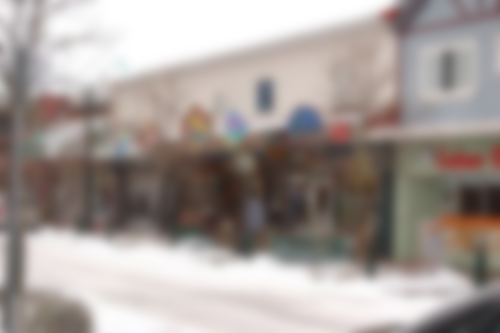
Here you will have to experiment. You want to add enough blur to where you start losing the lines, but can still see the general shapes of the image. You want it about like this image. This took a 15, but I've had some, especially larger ones, take up to 50.

Image

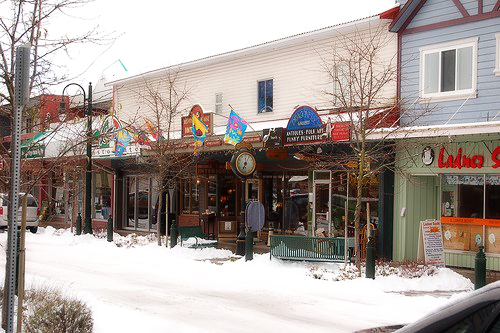
Once you have the blur set the layer mode to overlay.

Then merge the layers and save as a .png file.

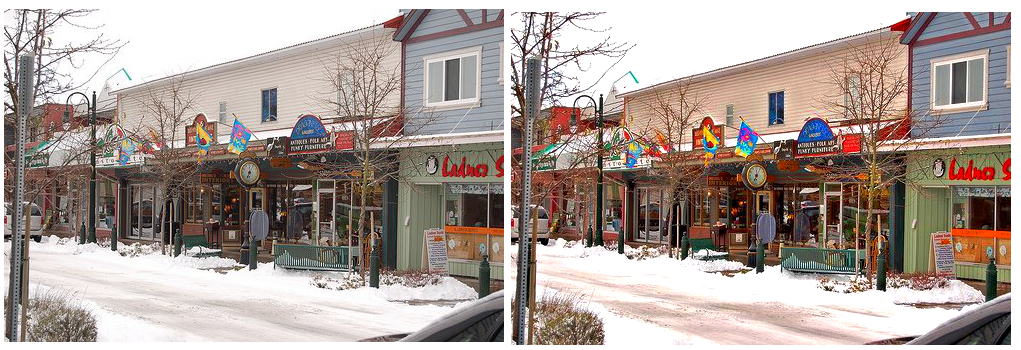
Before Image After Image

You end up with this subtle, yet noticeable difference. I hope this is helpful.

_________________
Image


Share on Facebook Share on Twitter Share on Orkut Share on Digg Share on MySpace Share on Delicious Share on Technorati
Top
 Post subject: Re: Make your images POP with 3 easy steps!
PostPosted: Fri Jan 20, 2012 10:45 pm  (#2) 
Offline
GimpChat Member
User avatar

Joined: Oct 11, 2011
Posts: 55
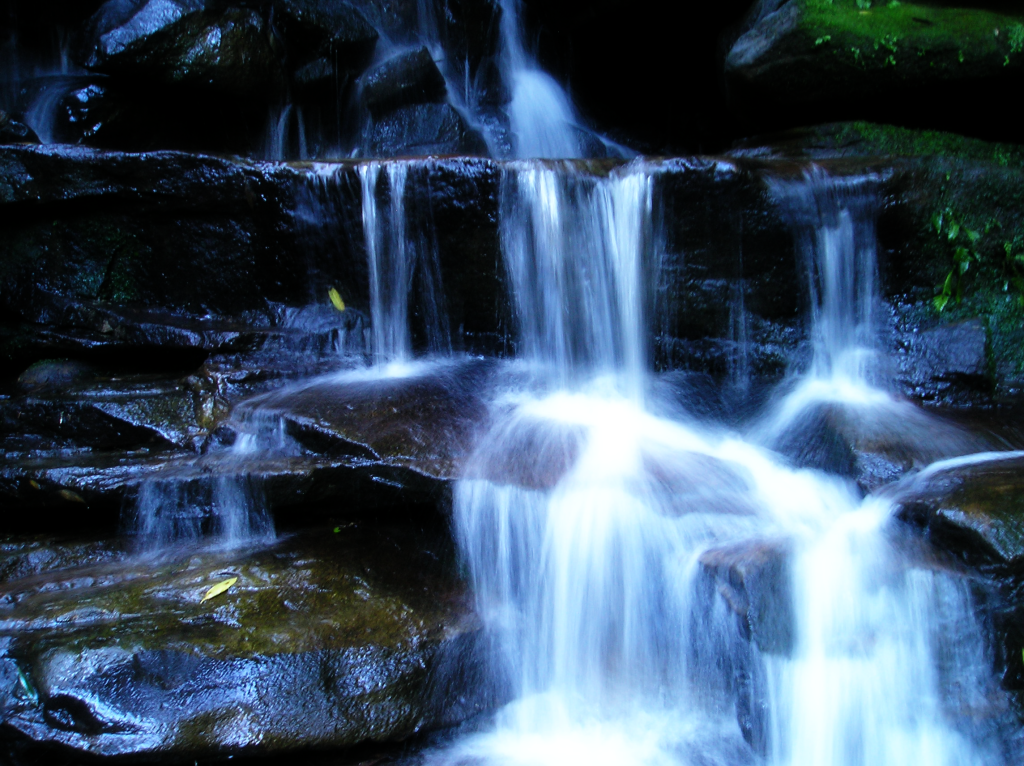
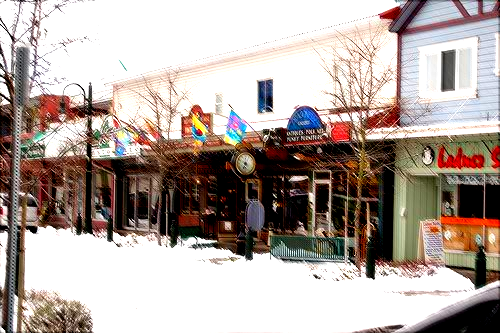
This is a larger image.

Original Image

Blur Image

Finished Image

_________________
Image


Top
 Post subject: Re: Make your images POP with 3 easy steps!
PostPosted: Sat Jan 21, 2012 12:16 am  (#3) 
Offline
Script Coder
User avatar

Joined: Feb 18, 2011
Posts: 4826
Location: Bendigo Vic. Australia
Daemon have you tried selective guassian blur on your top layer and setting it's Mode to grain-merge.

_________________
Image
No matter how much you push the envelope, it'll still be stationery.


Top
 Post subject: Re: Make your images POP with 3 easy steps!
PostPosted: Sat Jan 21, 2012 9:04 am  (#4) 
Offline
GimpChat Member
User avatar

Joined: Oct 11, 2011
Posts: 55
Nope, sure haven't, but I'll play around with it.

_________________
Image


Top
 Post subject: Re: Make your images POP with 3 easy steps!
PostPosted: Sat Jan 21, 2012 12:03 pm  (#5) 
Offline
GimpChat Member
User avatar

Joined: Sep 29, 2011
Posts: 120
Location: Texas
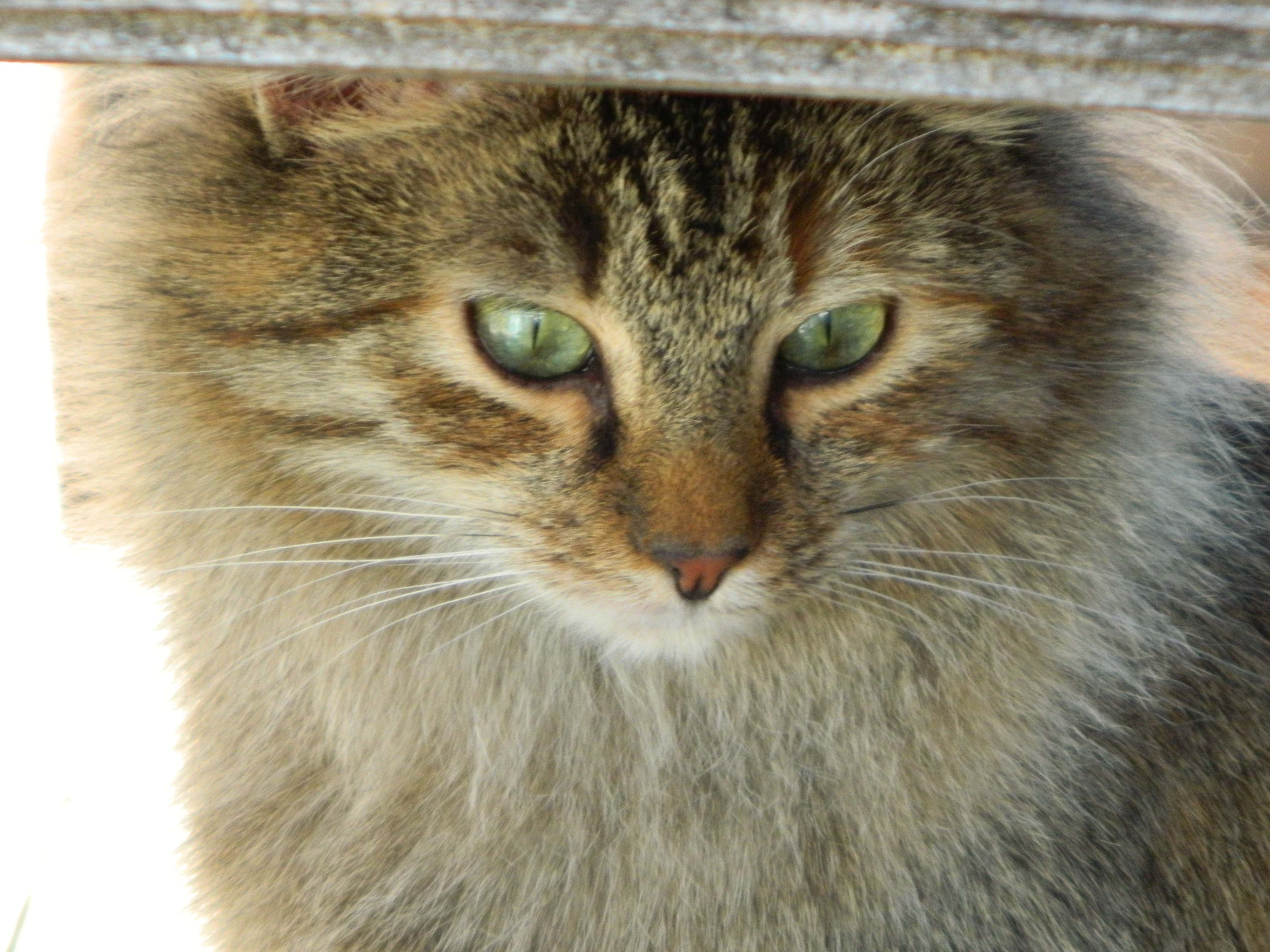
I did this with another cat picture I am working on, a facial picture and it worked perfectly! I had done initially an unsharp mask when I had read this..pulled up a clean copy and did these steps actually duplicating twice and the colors were perfectly brightened yet it kept the softness of the fur (she's a very fuzzy cat) without making the fur seem coarse (?) as the unsharp mask seemed to do.

Thank you for the timely info!

I'm still working on the picture but shall show it when done.

EDIT: Well I finished so since I said I'd show the results...this is done with the method above, plus the removal of white light glare to the left side of the face filled in with a fall leaf pattern to hopefully blend it in.....wishing now I had blurred that a bit...but anyway..I love the way this methods works in preserving softness.

Oh maybe I should have shown the before....
Image

Image
sister by Jorden, on Flickr

_________________
“There´s tools and colours for all of us,
to lend from nature to make the world
more understandable and beautiful”.

Image


Last edited by Jorden on Sun Jan 22, 2012 12:36 am, edited 1 time in total.

Top
 Post subject: Re: Make your images POP with 3 easy steps!
PostPosted: Sat Jan 21, 2012 5:09 pm  (#6) 
Offline
Global Moderator
User avatar

Joined: May 16, 2010
Posts: 16023
This is the way i do it
Open your image
Duplicate it
Go to colors>Invert top duplicate
Set the duplicates mode to grain extract and set the opacity to your liking. :)
Works very nicely for me.

Original 3600x2700 image
Image

After
Image

_________________
Image


Top
 Post subject: Re: Make your images POP with 3 easy steps!
PostPosted: Sat Jan 21, 2012 5:19 pm  (#7) 
Offline
GimpChat Member
User avatar

Joined: Apr 08, 2010
Posts: 5420
Location: Northwest Ohio
I tried all 3 methods and they all work great...I am now curious as to how and why it works!!!


Top
 Post subject: Re: Make your images POP with 3 easy steps!
PostPosted: Sat Jan 21, 2012 5:46 pm  (#8) 
Offline
GimpChat Member

Joined: Mar 14, 2011
Posts: 998
2-ton wrote:
I tried all 3 methods and they all work great...I am now curious as to how and why it works!!!

They all work sort of like a pseudo-HDR. Basically you are increasing the local contrast and decreasing the global contrast. Take it too far and you have nice halos all over (which you don't want). If you downloaded the Useful plugins for gimp 2.7.5 you will find a plugin called advancedtonemapping. Use that plugin with gaussian blur set to about 30% of the image and 3 layers, and you should get a nice pleasing local contrast effect.


Top
 Post subject: Re: Make your images POP with 3 easy steps!
PostPosted: Mon Feb 06, 2012 2:12 pm  (#9) 
Offline
New Member

Joined: Feb 06, 2012
Posts: 4
I tried the Gaussian blur and the selective Gaussian blur and they both work great I can't wait to use this on some pictures.

_________________
Life is what happens while your busy making other plans-John Lennon


Top
 Post subject: Re: Make your images POP with 3 easy steps!
PostPosted: Mon Feb 06, 2012 3:09 pm  (#10) 
Offline
GimpChat Member

Joined: Aug 05, 2011
Posts: 606
Location: limestone,ny
fake hdr script works good too

Image


Top
 Post subject: Re: Make your images POP with 3 easy steps!
PostPosted: Wed Mar 07, 2012 6:27 pm  (#11) 
Offline
GimpChat Member
User avatar

Joined: Mar 05, 2012
Posts: 7
does saving in .jpg or .xcf make any difference?

gychang

Daemon wrote:
Ever take a pic and think, "Man, why aren't the colors there?"

Image

Once you have the blur set the layer mode to overlay.

Then merge the layers and save as a .png file.

Before Image After Image

You end up with this subtle, yet noticeable difference. I hope this is helpful.


Top
 Post subject: Re: Make your images POP with 3 easy steps!
PostPosted: Thu Mar 08, 2012 4:50 am  (#12) 
Offline
GimpChat Member
User avatar

Joined: Apr 07, 2010
Posts: 14182
When you save as xcf, your image will still be in the Gimp format. You will have all your layers. You can go back and make changes when it is still in xcf. If you save to png, all the layers will export into one layer.

_________________
Image


Top
 Post subject: Re: Make your images POP with 3 easy steps!
PostPosted: Fri Mar 09, 2012 12:30 pm  (#13) 
Offline
GimpChat Member
User avatar

Joined: Nov 09, 2011
Posts: 726
Interesting.
I think that not only blur filter can be used with this method. For example, if you want:
Only highlight colors: no filter, just duplicate the layer and set layer mode to Overlay.
Enhance images with a large grain or noise: Duplicate layer, apply Blur or Despeckle filter and set layer mode to Overlay.
Improve blurred images or highlight details: Duplicate layer, apply Sharpen filter and set layer mode to Overlay.
In all cases if the image results dark or overexposed, you can improve from "Colors" - "Levels".

I'm supposing because I really do not understand well how Overlay mode works.

_________________
Image
Be patient, English is not my language.


Top
 Post subject: Re: Make your images POP with 3 easy steps!
PostPosted: Fri Mar 09, 2012 6:38 pm  (#14) 
Offline
GimpChat Member

Joined: Mar 14, 2011
Posts: 998
YAFU wrote:
Interesting.
I think that not only blur filter can be used with this method. For example, if you want:
Only highlight colors: no filter, just duplicate the layer and set layer mode to Overlay.
Enhance images with a large grain or noise: Duplicate layer, apply Blur or Despeckle filter and set layer mode to Overlay.
Improve blurred images or highlight details: Duplicate layer, apply Sharpen filter and set layer mode to Overlay.
In all cases if the image results dark or overexposed, you can improve from "Colors" - "Levels".

I'm supposing because I really do not understand well how Overlay mode works.

Overlay is simply an S-curve applied to the image. Which means darker parts become darker and lighter parts become lighter. Of course, if you change the opacity, you can control this effect.


Top
 Post subject: Re: Make your images POP with 3 easy steps!
PostPosted: Fri Mar 09, 2012 11:33 pm  (#15) 
Offline
GimpChat Member
User avatar

Joined: Nov 09, 2011
Posts: 726
Thanks for the explanation, partha

_________________
Image
Be patient, English is not my language.


Top
 Post subject: Re: Make your images POP with 3 easy steps!
PostPosted: Mon Jul 29, 2013 8:26 am  (#16) 
Offline
New Member

Joined: Jul 29, 2013
Posts: 1
I tried the 3 different ways. Works great. Love it.


Top
 Post subject: Re: Make your images POP with 3 easy steps!
PostPosted: Mon Jul 29, 2013 10:40 pm  (#17) 
Offline
GimpChat Member
User avatar

Joined: Jun 25, 2011
Posts: 914
Location: Mount Olive, North Carolina
I tried it with a couple photos. I think the result looks pretty good.

Image

Image


Top
 Post subject: Re: Make your images POP with 3 easy steps!
PostPosted: Tue Jul 30, 2013 1:41 am  (#18) 
Offline
Script Coder
User avatar

Joined: Feb 18, 2011
Posts: 4826
Location: Bendigo Vic. Australia
One more method is by using the Convolution Matrix, here is my result using Vivid light with default settings

Image

perhaps set a little to high

Image

Sharpened a tad using the Convolution Matrix

_________________
Image
No matter how much you push the envelope, it'll still be stationery.


Top
 Post subject: Re: Make your images POP with 3 easy steps!
PostPosted: Sun Aug 04, 2013 5:36 pm  (#19) 
Offline
GimpChat Member
User avatar

Joined: Jan 10, 2013
Posts: 863
One more method
This is the way i do it!

1-Open your image
2-Duplicate it (name it Blur)
3-On the duplicate select: filters>blur>gaussian blur
"add enough blur to where you start losing the lines, but can still see the general shapes of the image."
4-Once you have the blur, set the layer mode to Grain Extract.
5-Do Layer - New from visible

Now you have 3 layers. (Original, Blur, Visible).

6-In top layer (Visible) set mode to Grain merge.
7-In layer "Blur" change mode to Overlay, e brinque com a opacidade se desejar.
8-Then merge the layers and save as a .png file

Before
Image

After
Image

_________________
bbbbbbbbbbbImage
bbbbbbbbbbb Be patient, English is not my language.


Top
 Post subject: Re: Make your images POP with 3 easy steps!
PostPosted: Sun Aug 04, 2013 10:14 pm  (#20) 
Akros wrote:
One more method
This is the way i do it!

1-Open your image
2-Duplicate it (name it Blur)
3-On the duplicate select: filters>blur>gaussian blur
"add enough blur to where you start losing the lines, but can still see the general shapes of the image."
4-Once you have the blur, set the layer mode to Grain Extract.
5-Do Layer - New from visible

Now you have 3 layers. (Original, Blur, Visible).

6-In top layer (Visible) set mode to Grain merge.
7-In layer "Blur" change mode to Overlay, e brinque com a opacidade se desejar.
8-Then merge the layers and save as a .png file

Before
[ Image ]

After
[ Image ]

@Akros: Tried your method on this image. Works well. :bigthup
Original
Image
Popped
Image


Top
Post new topic Reply to topic  [ 22 posts ]  Go to page 1, 2  Next

All times are UTC - 5 hours [ DST ]


* Login  


Powered by phpBB3 © phpBB Group